


Give your AI agent access to Komashi.
Connect your agent to the Komashi operations its credentials allow, so billing and customer work stay in one system.
One underlying business system.
Services, orders and subscriptions remain in Komashi even when you interact through another tool.
Controlled access, not unlimited access.
Each integration operates within the permissions and actions actually available to it.
Start from the existing workflow.
Use MCP to access supported operations, then keep building the parts of your product that make it different.
Three kinds of work, within the account's permissions.
Look up
Read customers, services, subscriptions, invoices and usage for the provider your credentials can access.
Prepare
Draft a service setup and return a Komashi link to review it. Nothing is created until you complete the setup.
Change
Update customer details or cancel a subscription, when the connected account has that permission. Ask the agent to show the exact change first.
Two requests an agent can handle
Prepare
“Help me set up a new service for my business. Show me the full summary and give me a link to review it before anything is created.”
The agent saves your confirmed answers as a draft and returns a Komashi link where you review, edit and create the service.
Look up
“Which customers have an active subscription on my maintenance service? Do not change anything.”
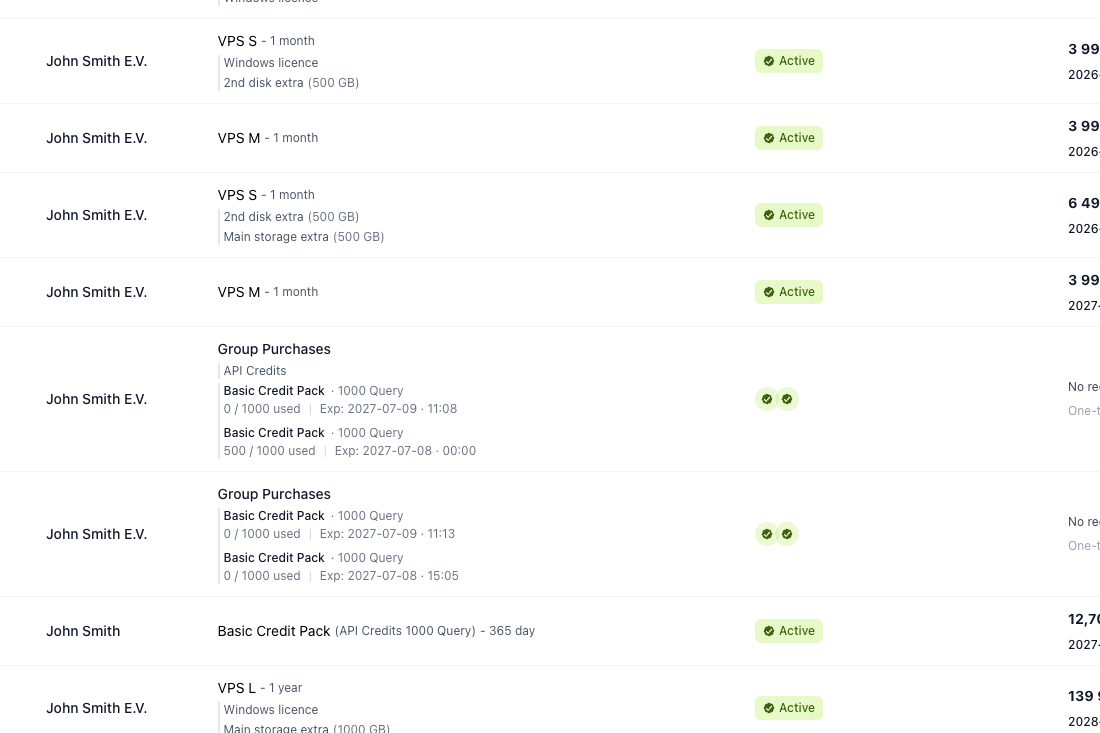
The agent reads the service, then lists its active subscriptions and returns the details for you to check.
For connection steps, sign-in and the full tool list: MCP setup for developers
To describe a service in the Komashi app and review the draft there: Komashi AI
1 of 3 done
-
A draft summary of the serviceNext step
-
A Komashi link to review itNext step
-
Nothing created until you approveNext step