Service editor
Click a service on the Services page to open its editor. The editor has four tabs — Pricing, Layout editor, VAT, and Storefront settings — with a breadcrumb back to Manage services on the left and two controls on the right:
- Preview — open the customer-facing page.
- Copy icon — copy the direct link to the service.
The Storefront settings tab shows the service's current state next to its name (for example ● Active), so you can see at a glance whether the service is public.
The editor opens on the Pricing tab. The first time you open it, a short guided tour points out the tabs.
Pricing
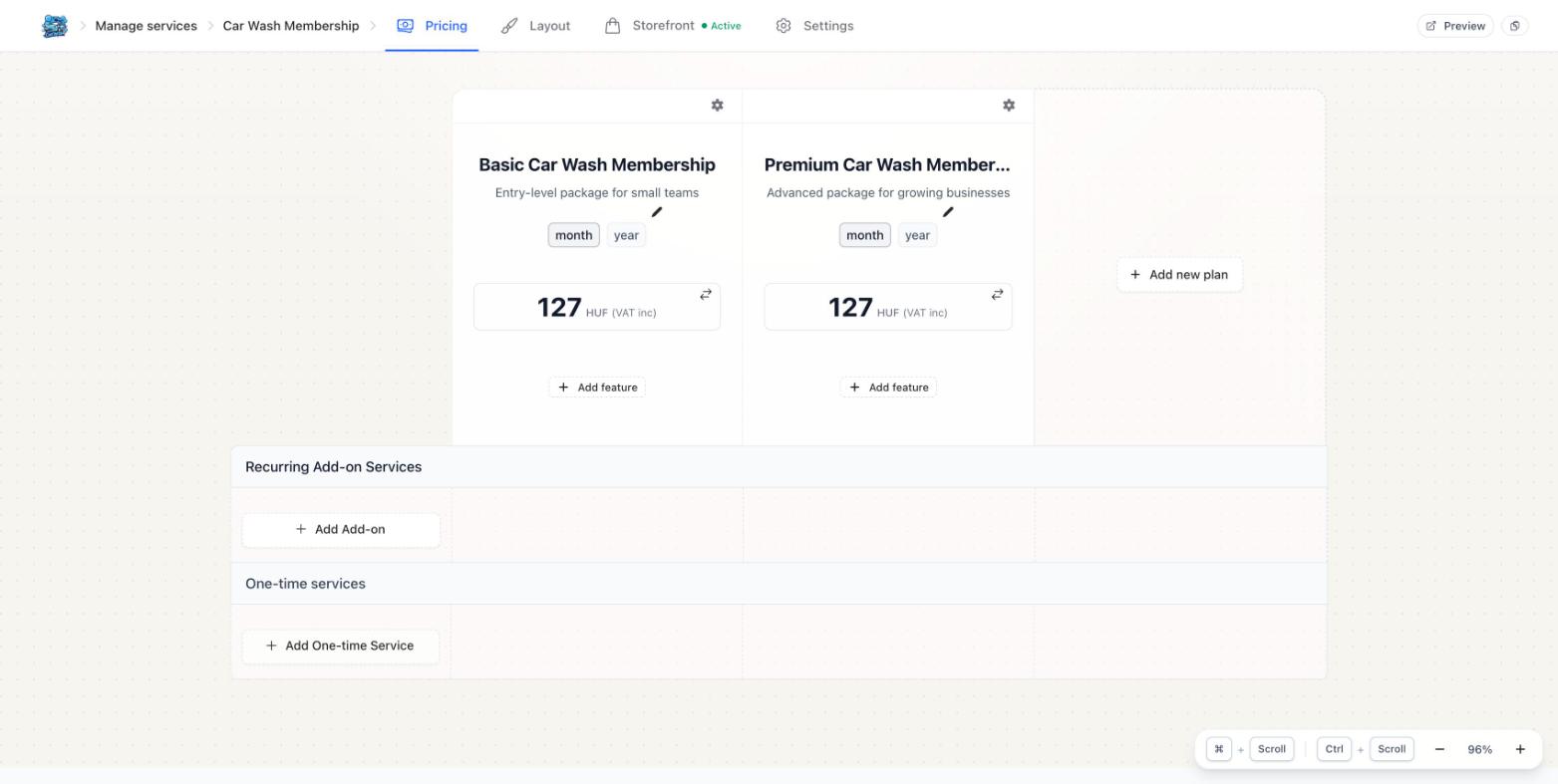
The Pricing tab is a canvas where you build the service's plans and extras:
- Plans — each plan is a column with its name, subtitle, period toggles (month / year), price, and an Add feature list. Use Add new plan to add another column, or the gear icon on a plan for its options.
- Recurring Add-on Services — extras billed alongside a recurring plan. Use Add Add-on.
- One-time services — single-payment items. Use Add One-time Service.
- A zoom control in the bottom-right corner fits larger pricing layouts on screen.
- The ⇄ icon on a price opens Transfer Price — copy that plan's pricing onto another plan instead of retyping it.
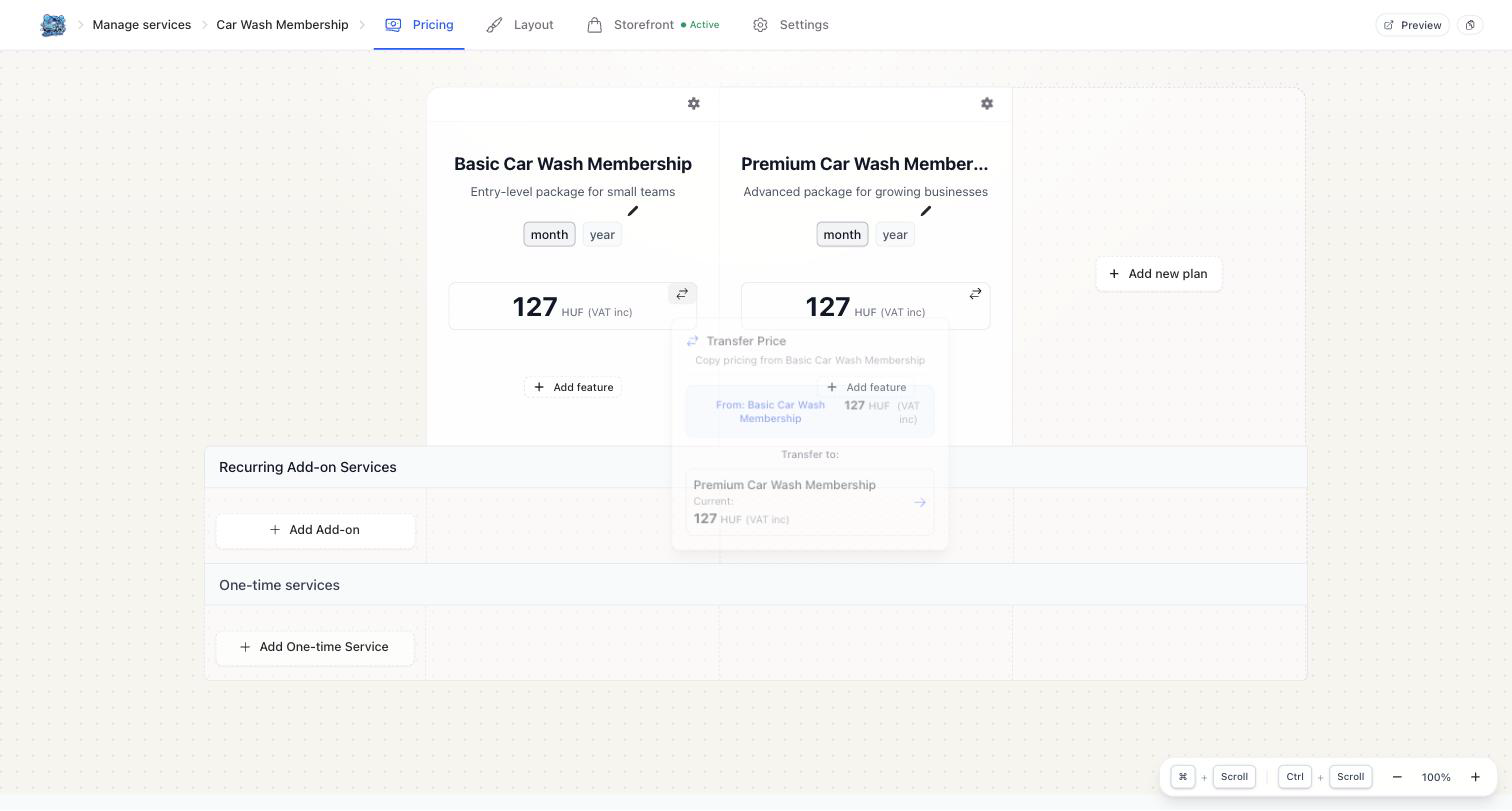
Prices on the canvas are shown gross, labelled with your catalog currency — for example 127 HUF (VAT inc).
Edit an existing price
You can change pricing at any time after the service has been generated.
- Open the service and switch to the Pricing tab.
- Click the price amount on the plan, add-on, or one-time item you want to change.
- Configure the price in the Price Configuration panel (see below).
- Click Save changes.
Changing a price does not re-price existing subscriptions. See What happens to existing subscribers if I change the price?
Price Configuration
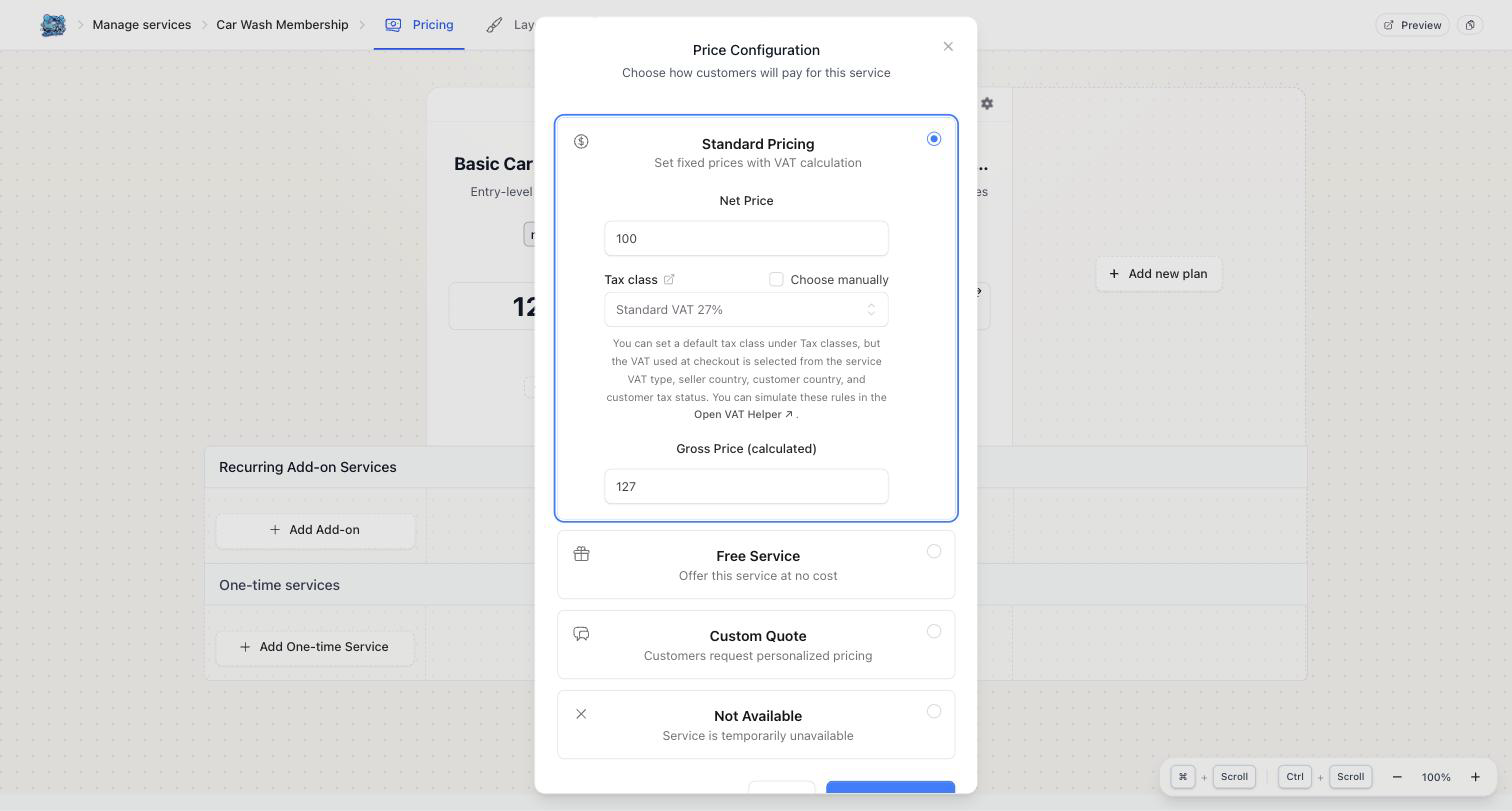
Choose a pricing type:
- Standard Pricing — "Set fixed prices with VAT calculation". Enter the Net Price; the Gross Price (calculated) is derived from it and the tax class.
- Free Service — "Offer this service at no cost".
- Custom Quote — "Customers request personalized pricing"; no price is shown.
- Not Available — "Service is temporarily unavailable"; hides the plan.
:::note Tax class is automatic
You do not normally pick a tax class. The field is disabled by default and shows your default class (for example Standard VAT 27%). Tick Choose manually to override it for that one price.
Either way, the VAT actually applied at checkout is selected from the service's VAT type, the seller country, the customer country, and the customer's tax status — not from this field. Use the Open VAT Helper link in the panel to simulate those rules. See VAT below and VAT and Tax Profiles. :::
Layout editor
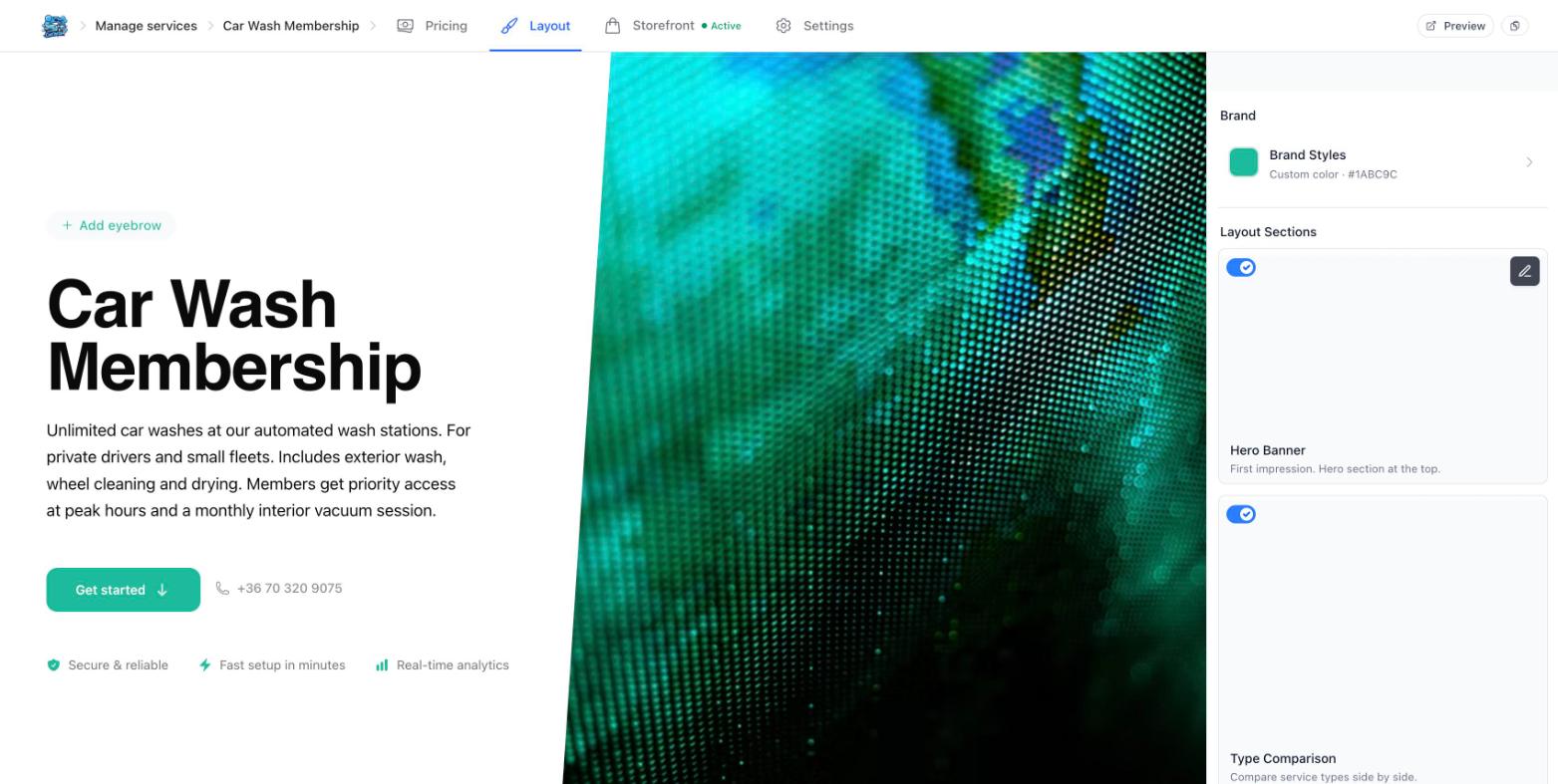
The Layout editor tab controls how the service's storefront page looks. The page preview is on the left, the controls on the right:
- Brand Styles — the visual styling of the page, seeded from your provider brand color in Basic Settings.
- Layout Sections — the six sections of the storefront page. Toggle a section on or off with its switch, or click it to open its editor.
The sections
| Section | What it shows | Editable | Can be turned off |
|---|---|---|---|
| Hero Banner | First impression. Hero section at the top. | Yes | Yes |
| Type Comparison | Compare service types side by side. | No | Yes |
| Pricing Plans | Plans, pricing, and subscriptions. | Yes | No |
| Extra Data | More custom fields below pricing for additional service data. | No | Yes |
| Testimonials | Customer reviews and social proof. | Yes | Yes |
| Footer | Contact info, links, and branding. | Yes | Yes |
Pricing Plans is always visible — it has no off switch, because a service page without its plans cannot be purchased.
Hero Banner, Type Comparison, Pricing Plans, and Footer also offer a regenerate action, which rewrites that section's content with the generator.
VAT
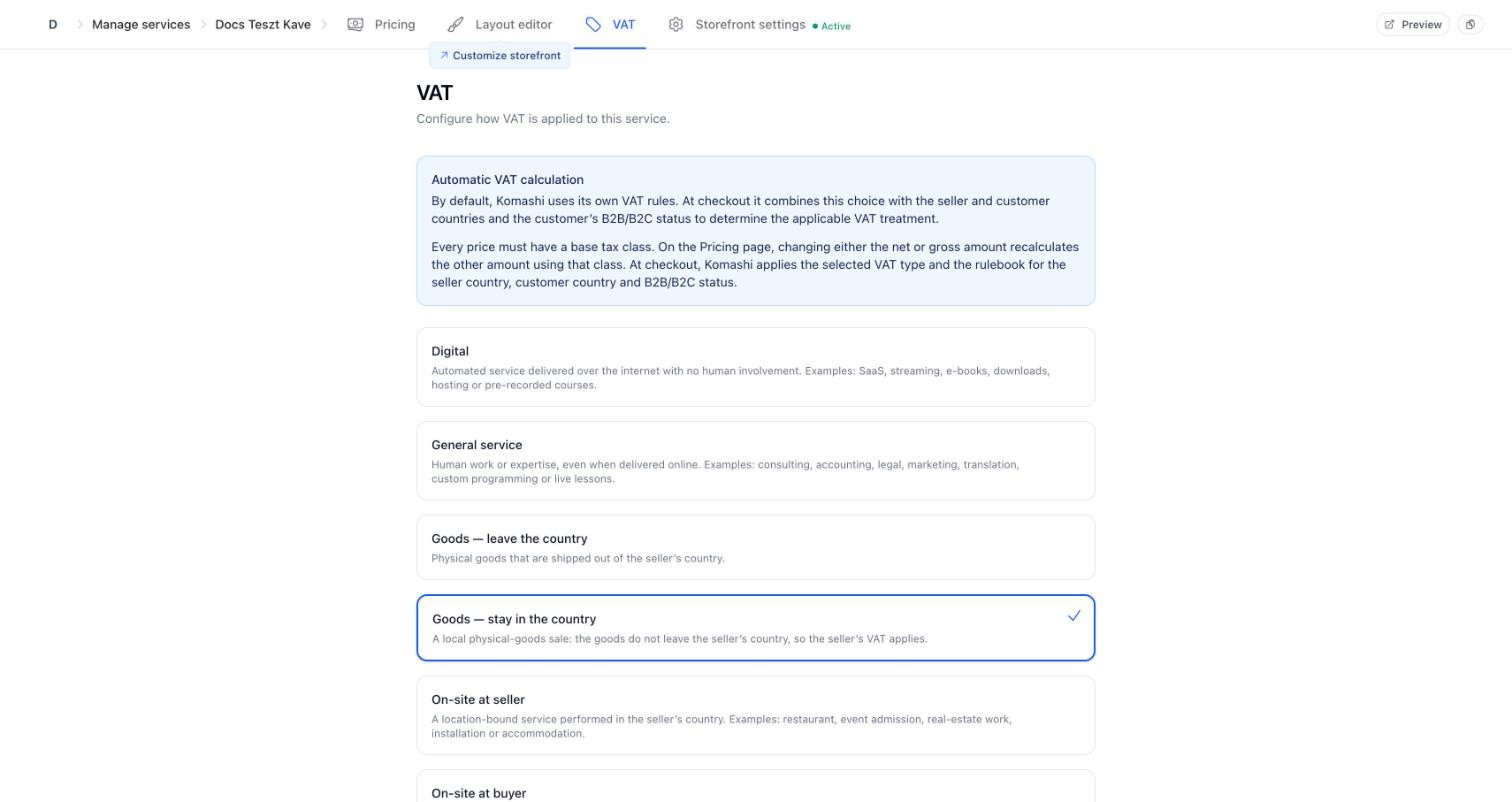
The service's VAT type. It is suggested from your description when the service is created, and you can change it here. The six types are listed in Manage Services.
By default Komashi applies its own VAT rules (Automatic VAT calculation). At checkout it combines this VAT type with the seller and customer countries and the customer's B2B/B2C status to determine the VAT treatment. Every price also needs a base tax class: on the Pricing tab, changing the net or gross amount recalculates the other one using that class.
Storefront settings
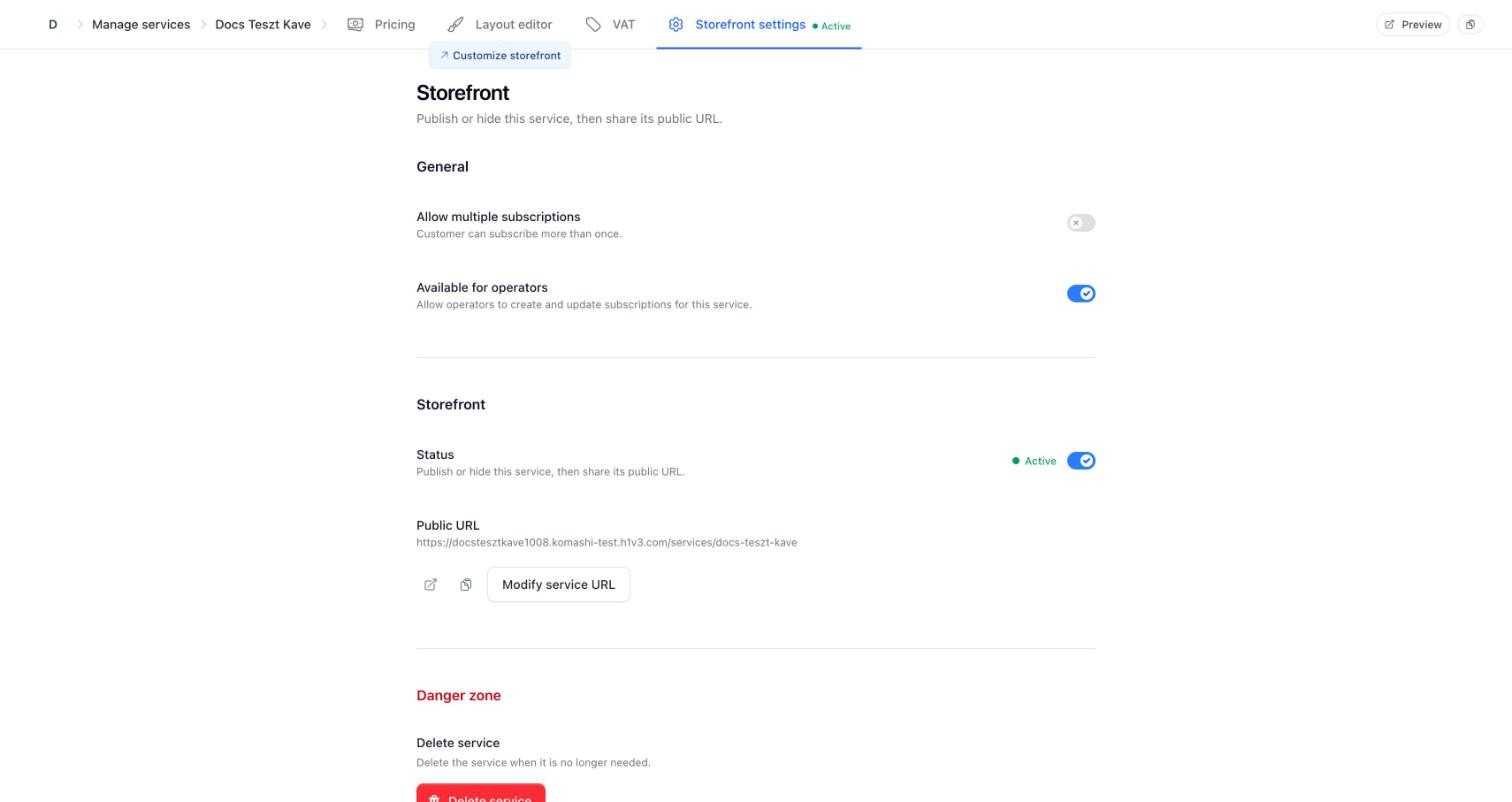
Publish or hide the service, get its public URL, and set who can subscribe.
General
- Allow multiple subscriptions — the same customer can subscribe more than once.
- Available for operators — operators can create and update subscriptions for this service.
Storefront
- Status — publish or hide the service. When it is ● Active, anyone with the link can open the service page and buy it.
- Public URL — for example
https://yourbrand.komashi.com/services/car-wash-membership, with buttons to open it, copy it, or Modify service URL.
A newly generated service is Active. It can be bought the moment generation finishes, at the generator's starter prices. Turn Status off until your pricing is right.
Danger zone
Click Delete service to remove the service. Deleting asks for confirmation and tells you what it affects:
- It deletes the service and all related plans, billing periods, and add-ons.
- Existing subscriptions stay active until the end of their current billing period, then stop renewing.
- If the service has subscriptions or billing history, its record is kept so that existing data is preserved.
- The action cannot be undone.
This is the service's own behaviour on deletion. What happens to subscribers is also governed by the Service Deletion rule in Provider Rules.
Related: Manage Services, VAT and Tax Profiles