Provider Rules
Control how plans, subscriptions, and customer data behave on your storefront. Open Settings → Provider rules in the Control Center.
Plan Management
Configure how customers can modify their subscription plans.
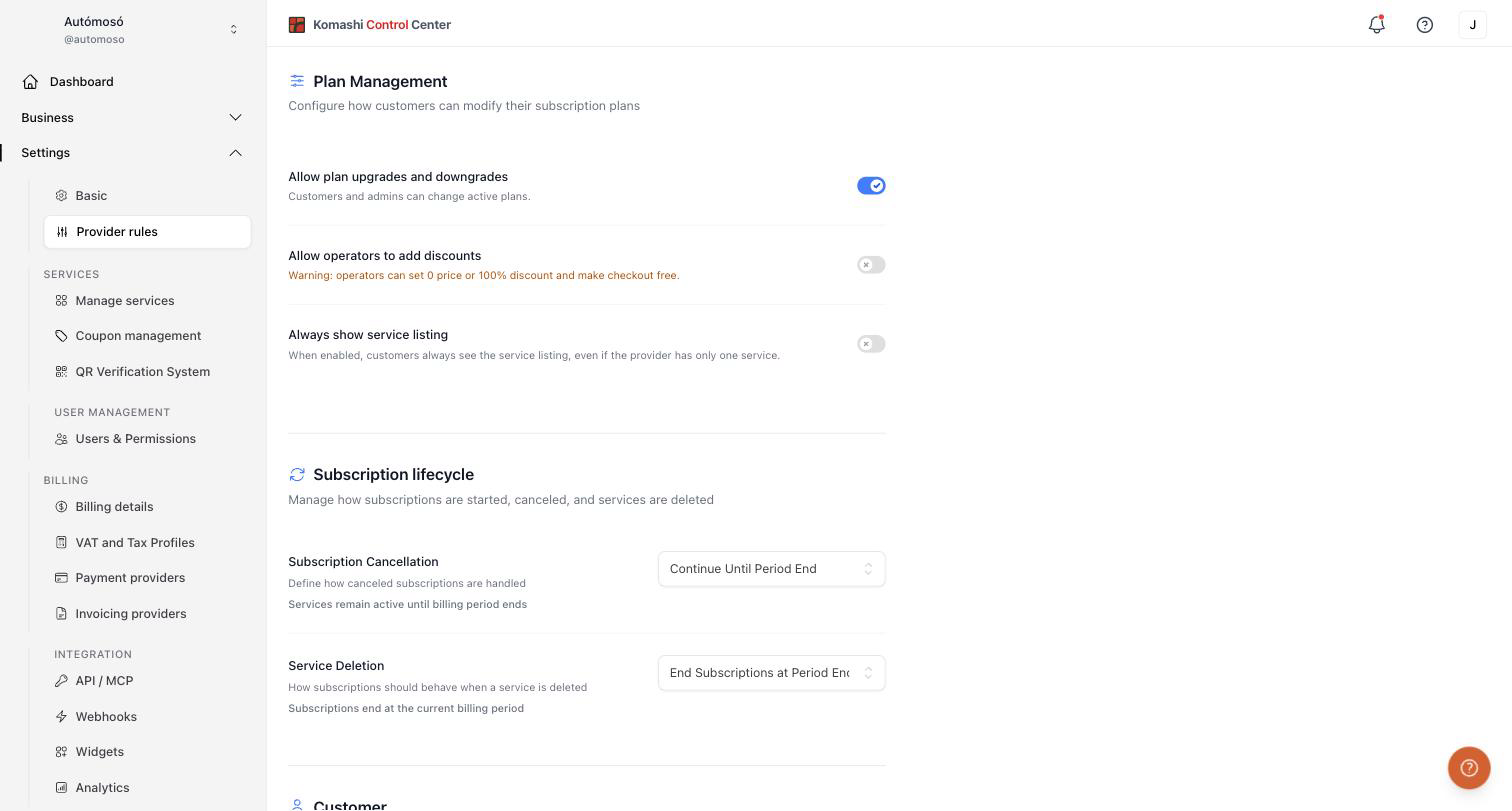
Allow plan upgrades and downgrades
When enabled, customers and admins can change active plans. This allows scaling up or down without interrupting service.
Allow operators to add discounts
When enabled, operators can apply discounts during checkout.
Operators can set a 0 price or a 100% discount and make checkout free. Enable this only if you trust all operator accounts.
Always show service listing
When enabled, customers always see the service listing, even if the provider has only one service. When disabled, a single service opens directly.
Subscription lifecycle
Manage how subscriptions are started, canceled, and how services behave when deleted.
Subscription Cancellation
Define how canceled subscriptions are handled:
- Continue Until Period End — Services remain active until the billing period ends. No immediate interruption.
- Immediate Stop — The subscription ends as soon as the customer cancels.
Service Deletion
Define how subscriptions behave when you delete a service:
- End Subscriptions at Period End — Subscriptions end at the current billing period.
- Keep Subscriptions Renewing — Existing subscribers keep renewing until they cancel manually. The service is hidden from new sales.
Customer
Control how customer billing profile changes sync with provider data.
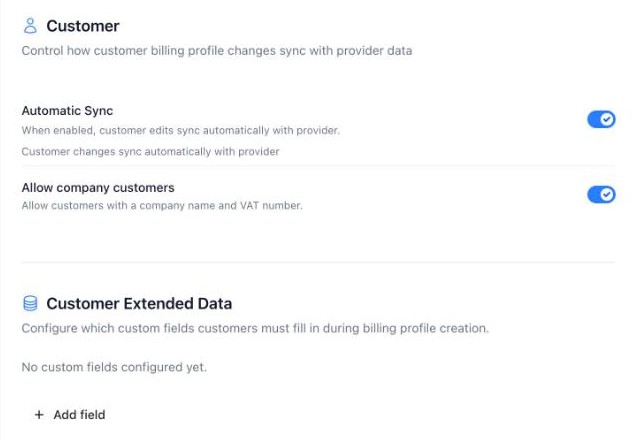
Automatic Sync
When enabled, edits customers make to their billing profile sync automatically with the provider. No manual review is needed. When disabled, customer changes wait for your approval before they take effect.
Allow company customers
When enabled, customers can subscribe as a company, with a company name and VAT number. Turn it off if you only sell to private individuals.
Customer Extended Data
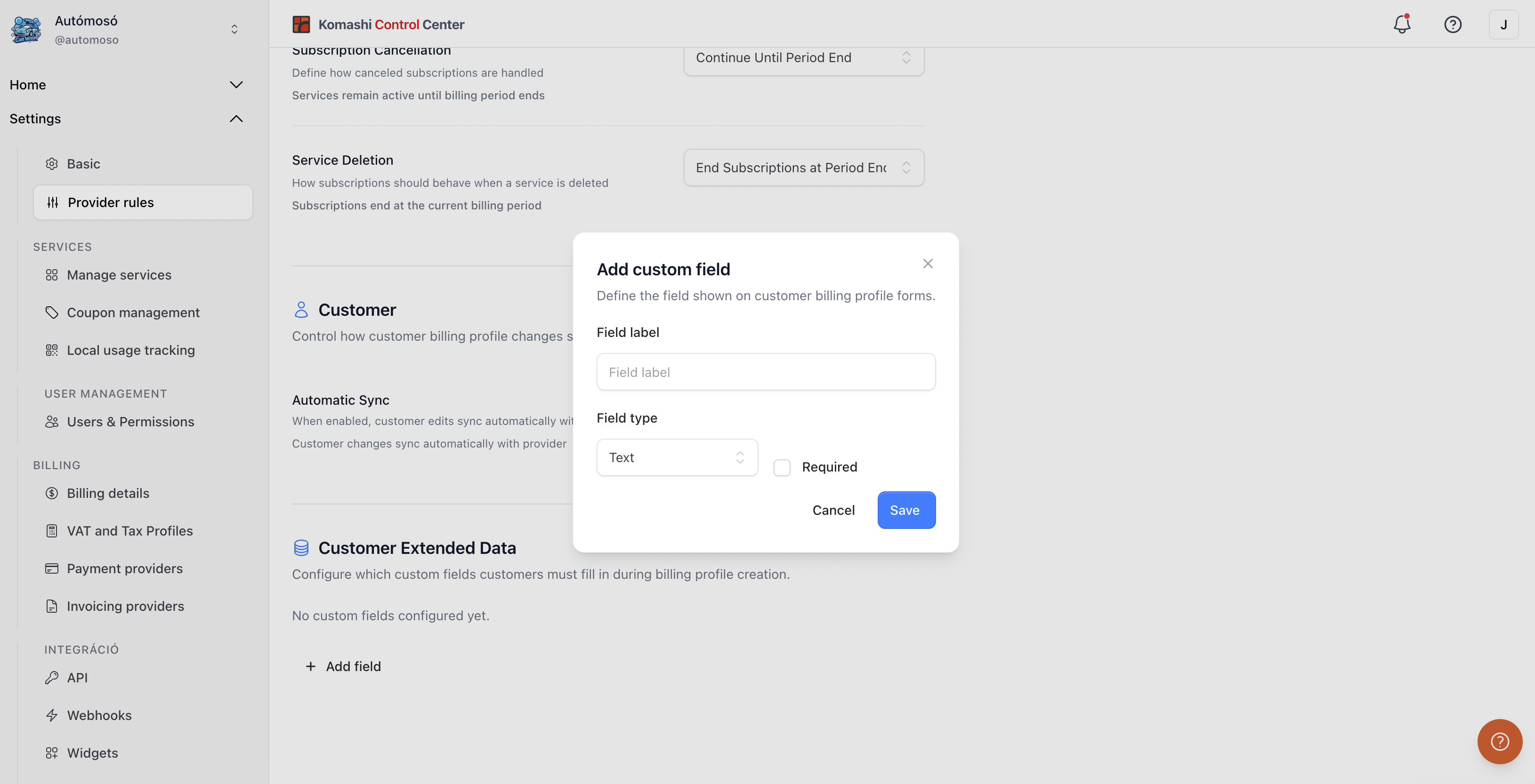
Configure which custom fields customers must fill in during billing profile creation. Use this to collect extra data your business needs (for example a license plate number).
To add a field:
- Click Add field.
- Enter a Field label.
- Select a Field type (for example Text).
- Check Required if customers must fill it in.
- Click Save.
Click Reset to default settings to restore every rule on this page to its default.
Related: Manage Services, Coupon Management