Manage Services
Create and manage the services you sell. Click Services in the left sidebar of the Control Center.
Service list
The list shows every service with its status, short description, and number of subscribers. A green dot means the service is live on your storefront. Labels under the description show Operators enabled and Single subscription where they apply. Use the eye icon to preview the service page and the copy icon to copy its link.
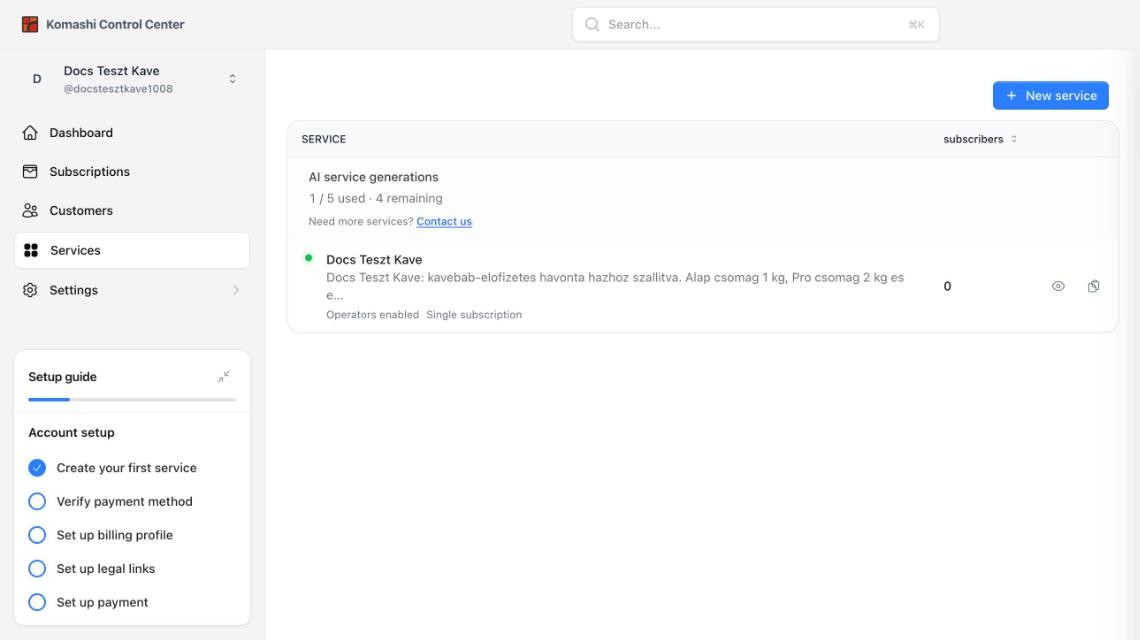
AI service generations
The box at the top of the list counts your AI generations, for example 1 / 5 used · 4 remaining. Each provider can generate 5 services with AI. Your first service, created together with your provider, counts as one. Need more? Click Contact us.
Create a new service
Your first service is generated when you create your provider. For every further service, click New service. Nothing is created until you click Generate Service.
1. Create new service
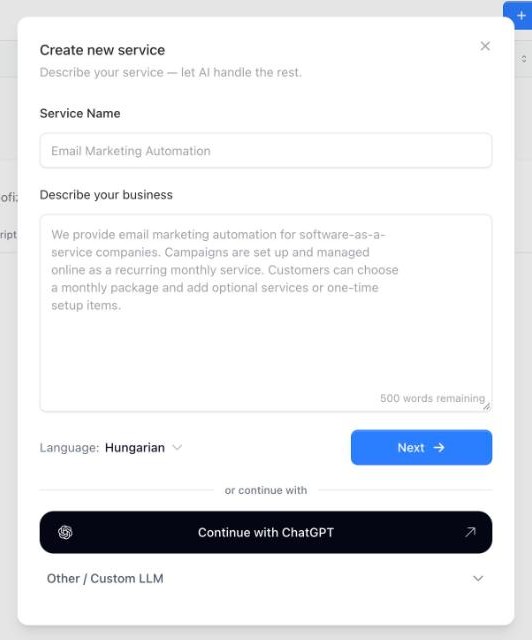
- Service Name — for example
Email Marketing Automation. - Describe your business — what this service includes, who it is for, and how it is billed. Up to 500 words. The generator works from this text, so the more concrete it is, the more usable the result.
- Language — the language the service is generated in.
Click Next.
Instead of the form you can use Continue with ChatGPT or Other / Custom LLM, the same way as when you create your provider.
2. Review your service
Check what Komashi will create. Click Edit to go back to the name and description.
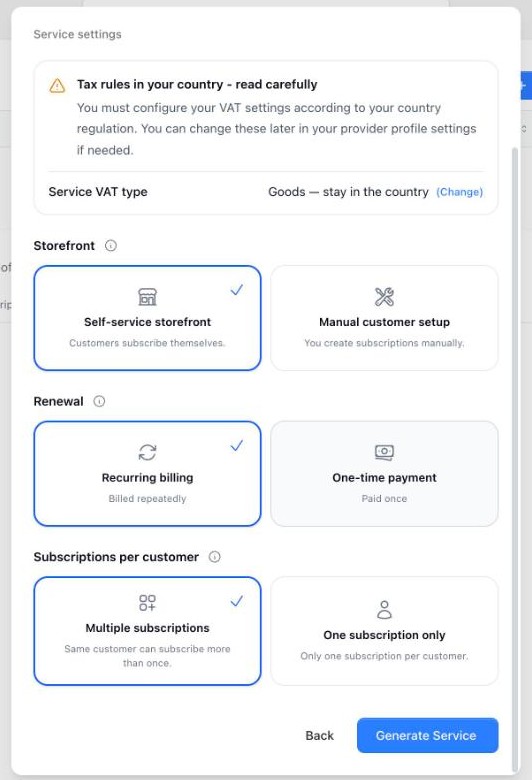
Under Service settings:
- Service VAT type — suggested from your description. Click (Change) to pick another. See VAT type below.
- Storefront — Self-service storefront (customers subscribe themselves) or Manual customer setup (you create subscriptions).
- Renewal — Recurring billing (billed repeatedly) or One-time payment (paid once).
- Subscriptions per customer — Multiple subscriptions (the same customer can subscribe more than once) or One subscription only.
Click Generate Service.
VAT type
The VAT type is required. You can change it later on the service's VAT tab. Two types are shown first; click Show more for all six:
| VAT type | What it covers |
|---|---|
| Digital | Automated online services with no human involvement — SaaS, streaming, e-books, downloads, hosting, pre-recorded courses. |
| General service | Human work or expertise, even when delivered online — consulting, accounting, legal, marketing, translation, custom programming, live lessons. |
| Goods — leave the country | Physical goods shipped out of the seller's country. |
| Goods — stay in the country | A local physical-goods sale; the seller's VAT applies. |
| On-site at seller | Location-bound service performed in the seller's country — restaurant, event admission, real-estate work, installation, accommodation. |
| On-site at buyer | Location-bound service performed in the customer's country. |
Generation
Generation takes a few seconds. While it runs, the service's row shows its progress, for example Creating packages and add-ons. When it finishes, the row shows a green dot.
What the generator produces
You get a working draft instead of an empty page:
- A plan structure — three plans, Entry, Growth, and Premium, each with month and year period toggles.
- A storefront page — hero banner with your service name and description, a generated hero image, a call to action, and further sections, styled with your brand colors from Basic Settings.
- The VAT type you confirmed, applied to the service.
:::danger The generated service is live immediately Generation publishes the service. Its public URL works and customers can buy it right away — at the generator's starter prices. If you are not ready to sell, open the service and turn Storefront settings → Status off before you do anything else. :::
What you must fix before selling
- The prices. The generator does not price your service. It fills the plans with fixed starter amounts that do not depend on your description — for example 10 000, 20 000, and 40 000 HUF. Set your real prices in the Pricing tab.
- The plan names and descriptions. They are generic. Rewrite them for what you actually sell.
- The plan features. No features are generated — each plan starts with an empty Add feature list.
- The storefront copy. The hero keeps your description, but the badges and feature strip are generic, for example "99.9% uptime SLA" or "4.9 rating". Remove anything that is not true for your business in the Layout editor.
- Add-ons and one-time items. The Recurring Add-on Services and One-time services sections are created empty.
:::note Language The generator writes in the Language you pick when you create the service. Your provider's default is set in Basic Settings. :::
See also plan and cancellation rules in Provider Rules.