Basic Settings
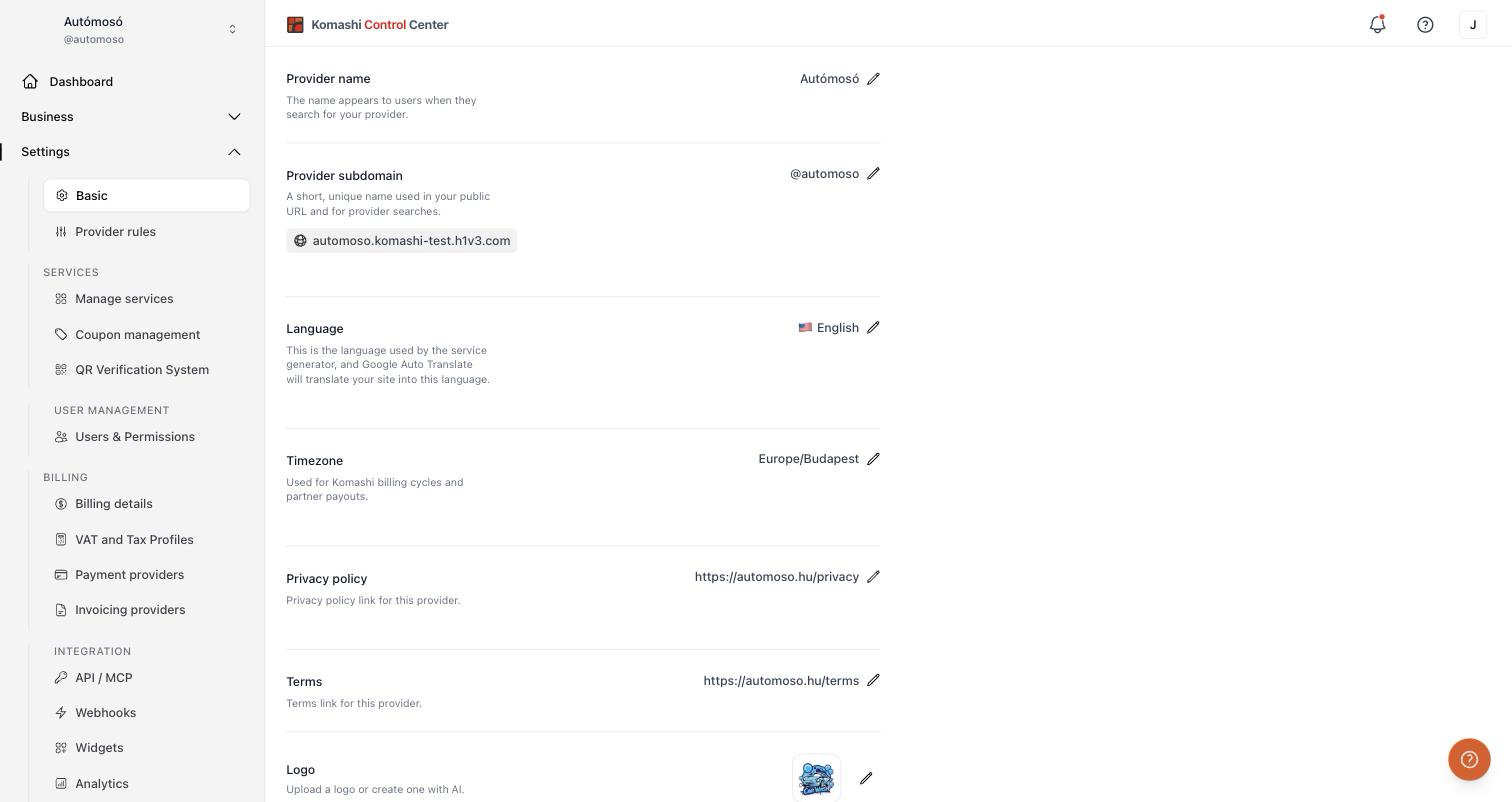
Configure your provider identity: name, subdomain, language, legal links, logo, and brand colors. Open Settings → Basic in the Control Center.
What you can configure
- Provider name — The name users see when they search for your provider.
- Provider subdomain — A short, unique identifier used in your public URL (for example
yourbrand.komashi.com) and in provider searches. - Language — The language used by the service generator. Google Auto Translate translates your site into this language.
- Timezone — The time zone used for Komashi billing cycles and partner payouts.
- Privacy policy — Link to your privacy policy page.
- Terms — Link to your terms page.
- Logo — Upload your own logo or create one with AI.
- Color palette — Your provider brand colors. AI generations use these colors.
- Delete Provider — Permanently remove this provider and all associated data.
How to set it up
Each setting has an edit (pencil) icon. Click it, change the value in the dialog, then click Save changes.
Provider name
- Click the pencil icon next to Provider name.
- Enter the new name.
- Click Save changes.
Provider subdomain
- Click the pencil icon next to Provider subdomain.
- Enter a short, unique identifier. Only letters, numbers, and hyphens. Minimum 3 characters.
- Click Change subdomain.
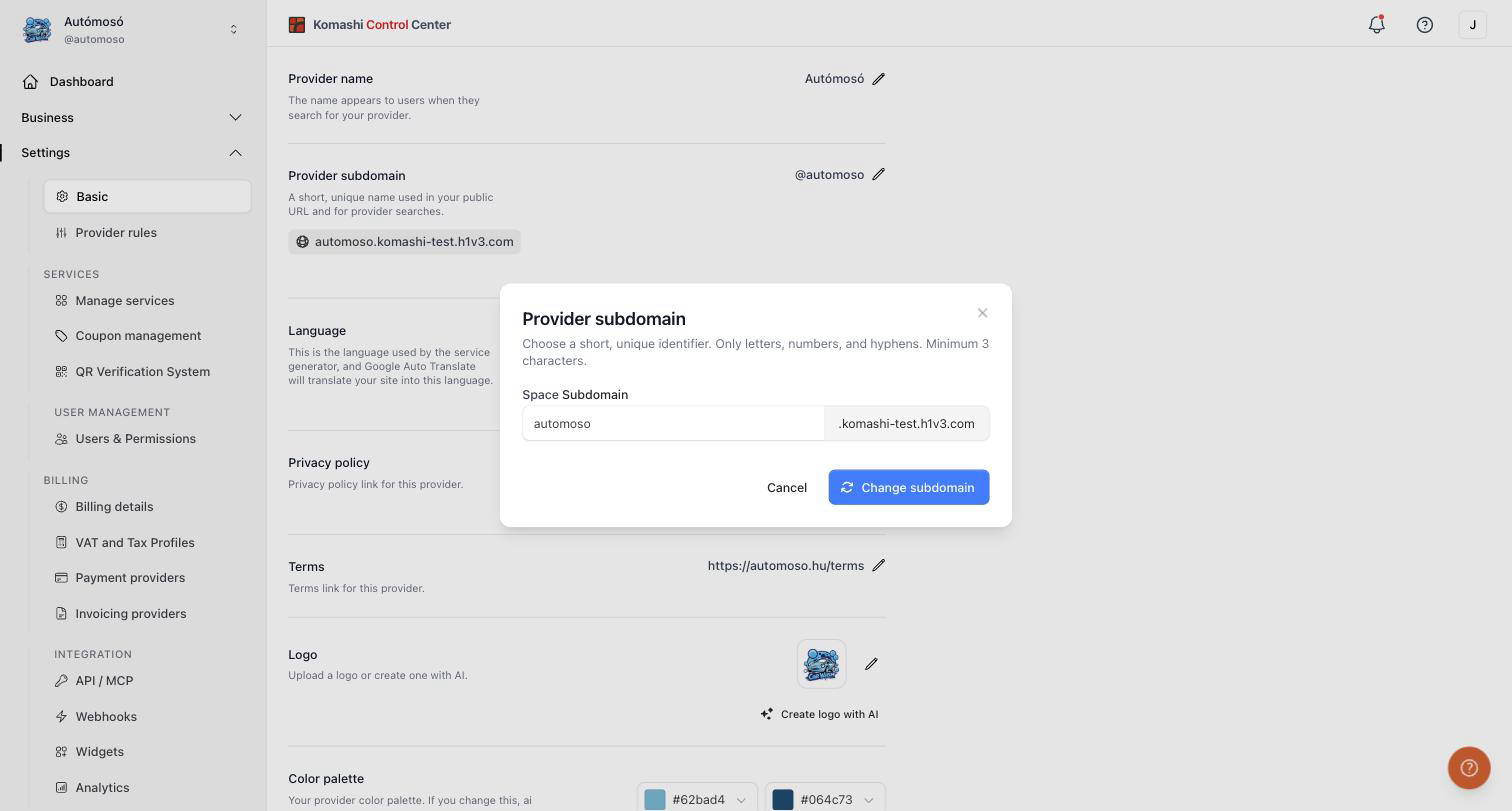
Changing the subdomain changes your public URL. Links to the old subdomain stop working.
Language
- Click the pencil icon next to Language.
- Select a language from the list.
- Click Save changes.
This is your storefront language. It is not the same as the Preferred language in your own profile settings, which sets your interface language and the language of the emails Komashi sends you. See What languages does Komashi support?.
Timezone
Your provider time zone determines when a billing month starts and ends. All Komashi billing cycles and partner payout calculations use it.
- Click the pencil icon next to Timezone.
- Select a time zone from the list (the full IANA list, for example
Europe/Budapest). - Tick I understand that this changes future billing and payout calculations.
- Click Save changes.
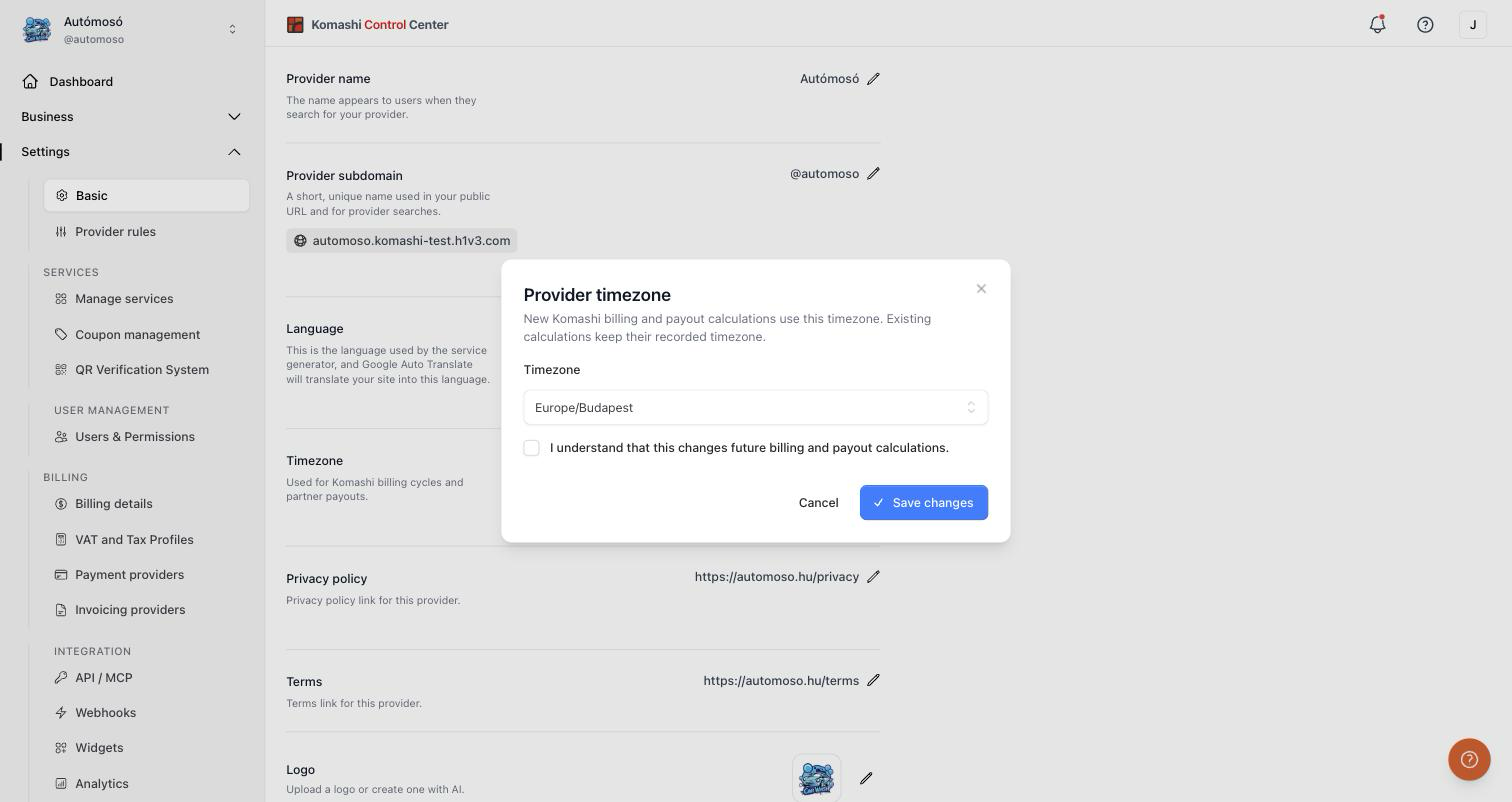
Changing the time zone applies to new Komashi billing and payout calculations only. Calculations that already ran keep the time zone recorded at the time — your past invoices and payout statements do not change retroactively.
Your billing month begins on the 1st day at 00:00 in this time zone. See Provider Fees for how the billing month affects your fee.
Privacy policy and Terms
- Click the pencil icon next to Privacy policy or Terms.
- Paste the full URL of the page (for example
https://yourbrand.com/terms). - Click Save changes.
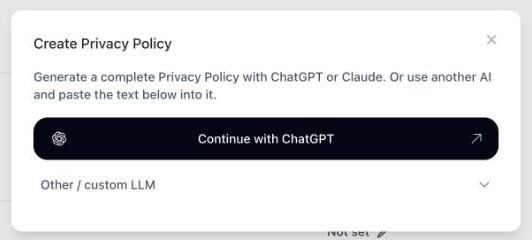
No documents yet? Click Create your own Privacy Policy or Create your own Terms of Service. The dialog offers Continue with ChatGPT, or a prompt under Other / custom LLM to paste into Claude or another AI assistant. The assistant drafts the text; publish it on your own site and paste its URL here.
Logo
Upload your own image with the pencil icon, or click Create logo with AI:
- Click Create logo with AI.
- Add 1–5 keywords that describe your brand. Keywords help generate your logo and improve discoverability.
- Click Generate logo.
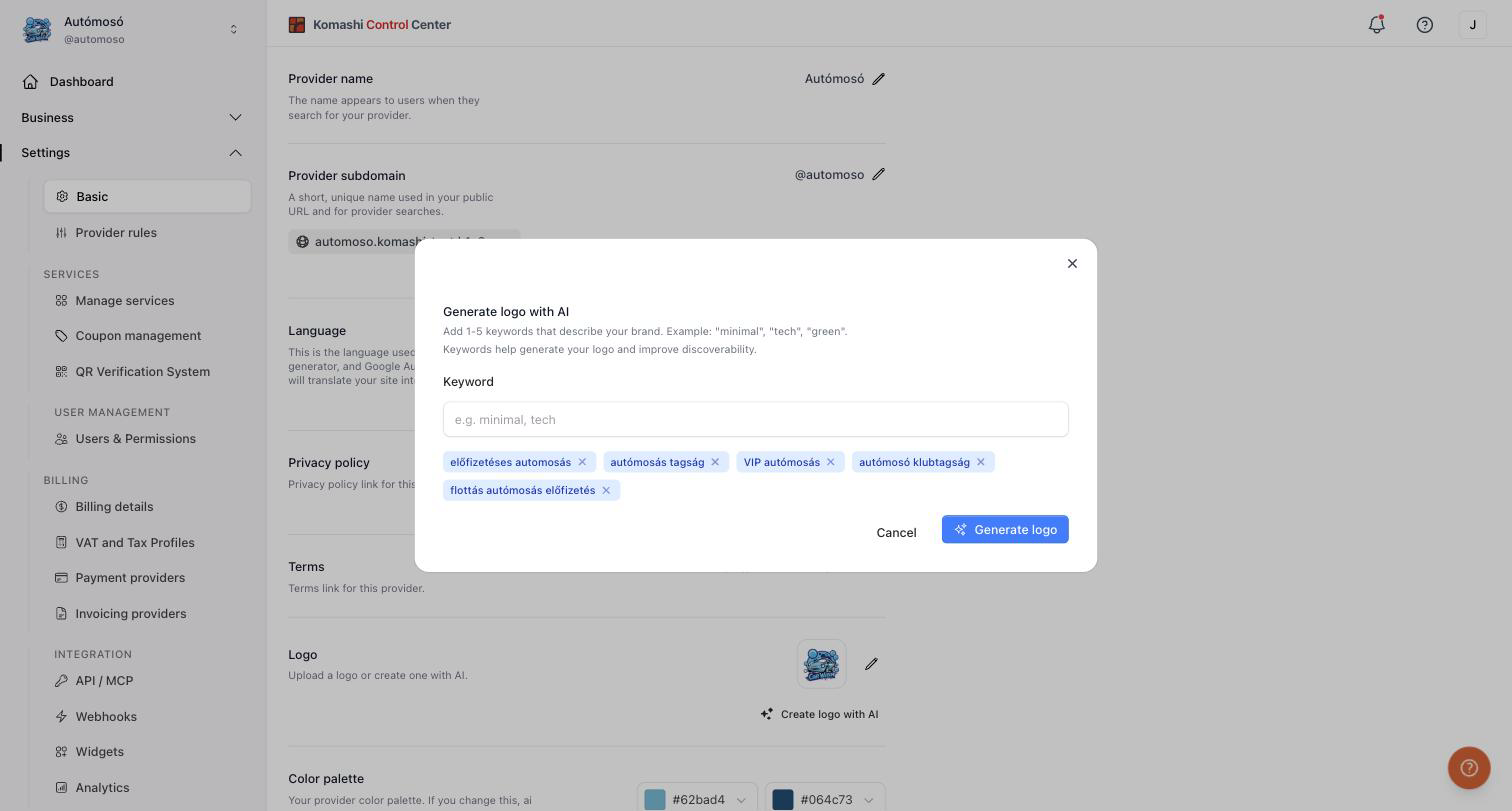
Your logo is served from a public image URL so it can be displayed outside the Control Center — on your storefront, in the widgets, and in the notification emails Komashi sends to your customers. Do not upload an image that contains information you do not want to be publicly accessible.
Color palette
Pick each color manually from the color dropdowns, or click Regenerate palette with AI to generate a matching palette. AI generations use the new colors.
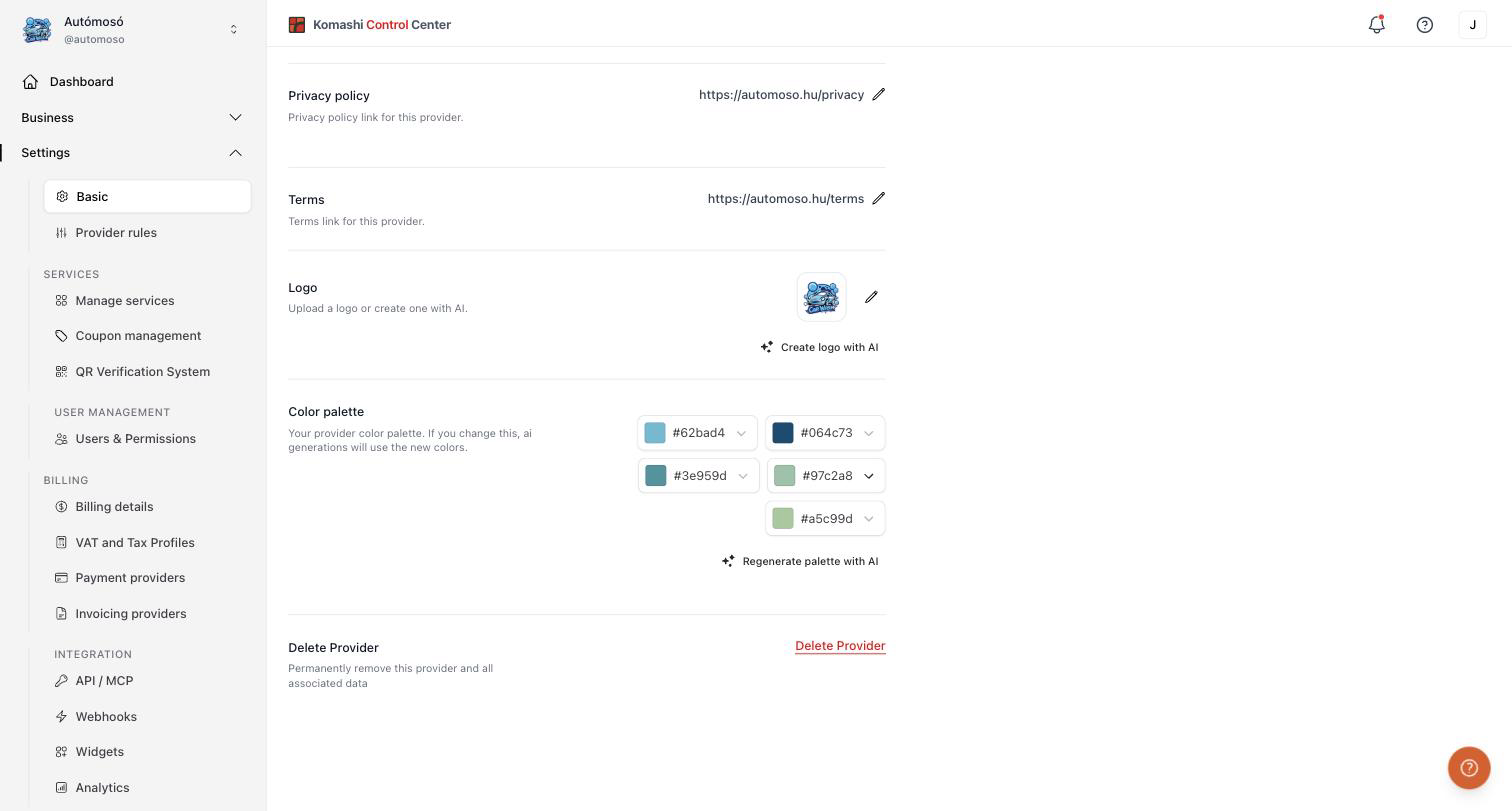
Delete Provider
Click Delete Provider to remove your provider account.
This permanently removes the provider and all associated data. The subdomain becomes available again 60 days after deletion.